Within clixifix®, you can now add a Resident Name & Signature to sign-off an agreed list of Defects.
When an Inspection List is agreed & ready to be saved, you can ask your Resident to sign it off. You must be logged into a paid portal as a Team Member/Admin to access this feature.
The sign-off options are not available to complete in the Resident Portal.
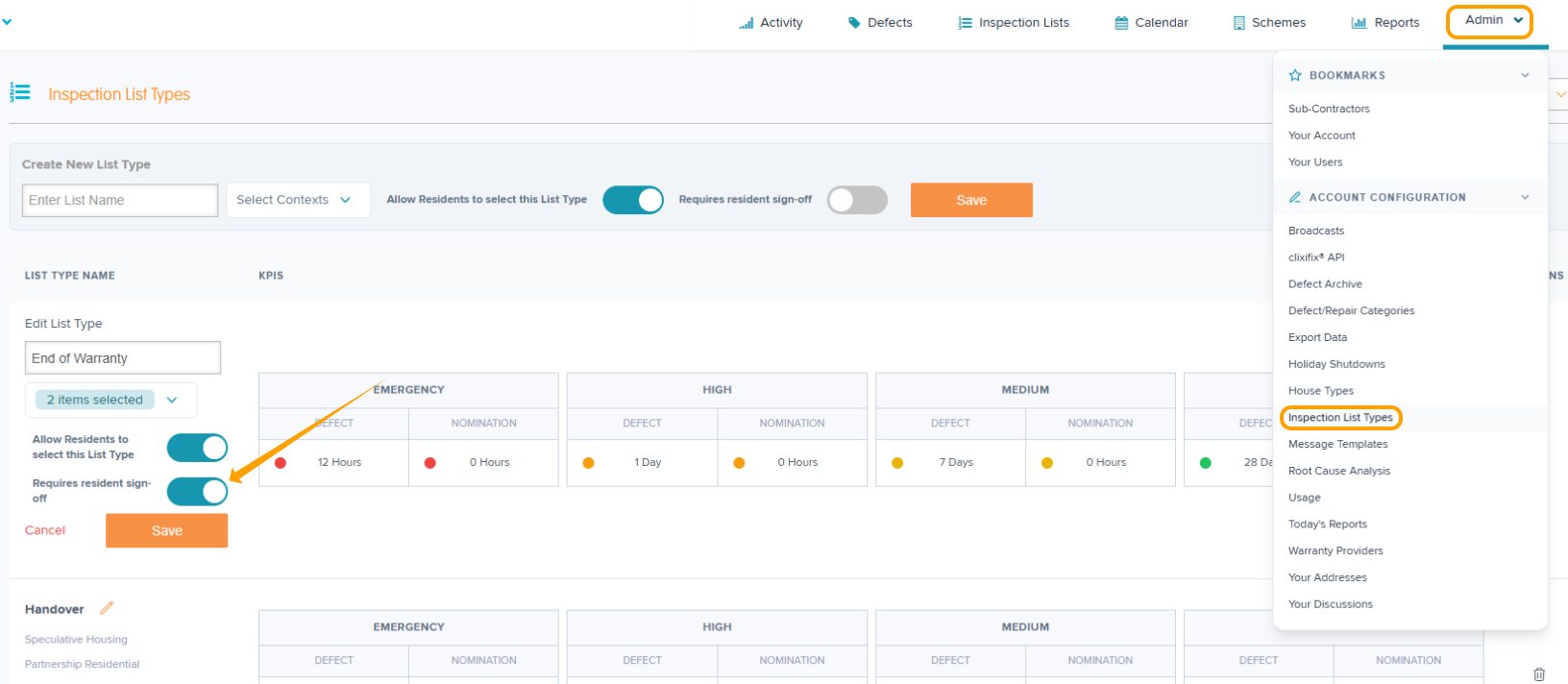
To activate the sign-off option on your Inspection Lists, navigate to;
Admin > Inspection List Types > Edit > Toggle on 'Requires resident sign-off' > Select Contexts > Save
Adding a new signature
Step 1: Enter the full Resident name in the box highlighted below.
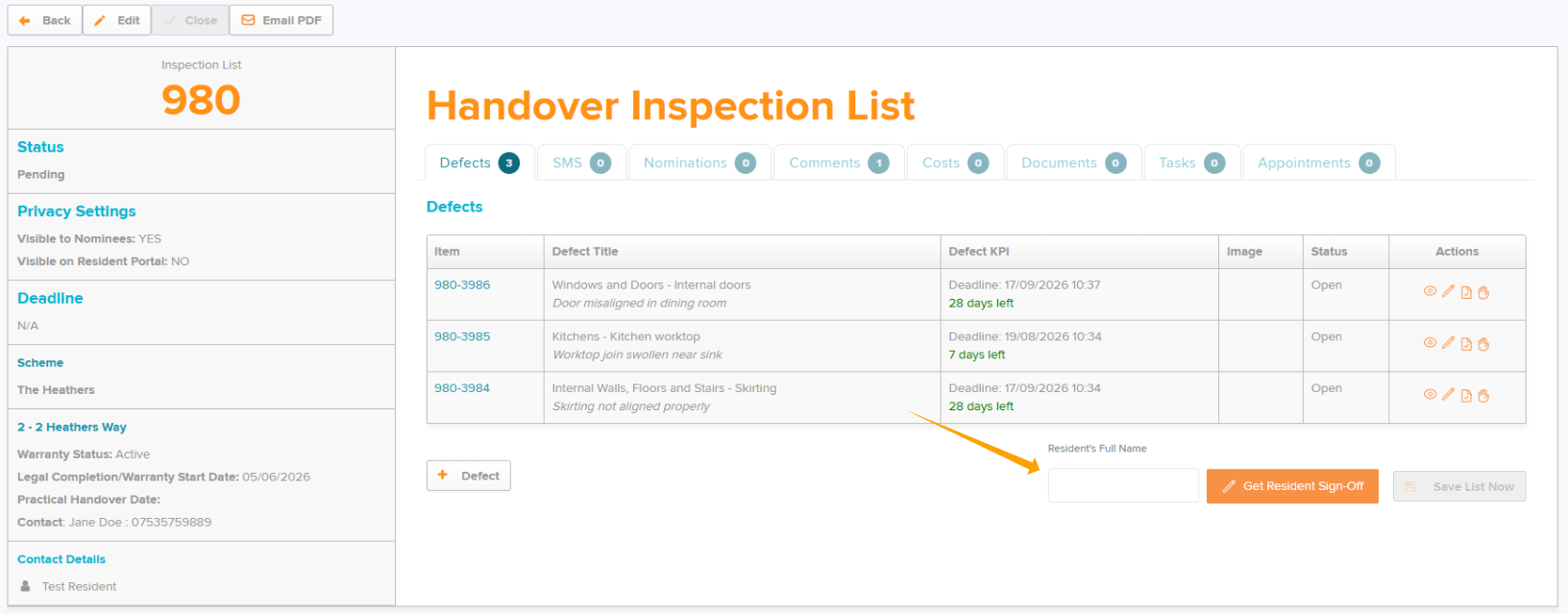
Step 2: Click 'Get Resident Sign-Off'.
Step 3: Ask your Resident to add their signature in the box. This can be done on desktop or mobile devices.
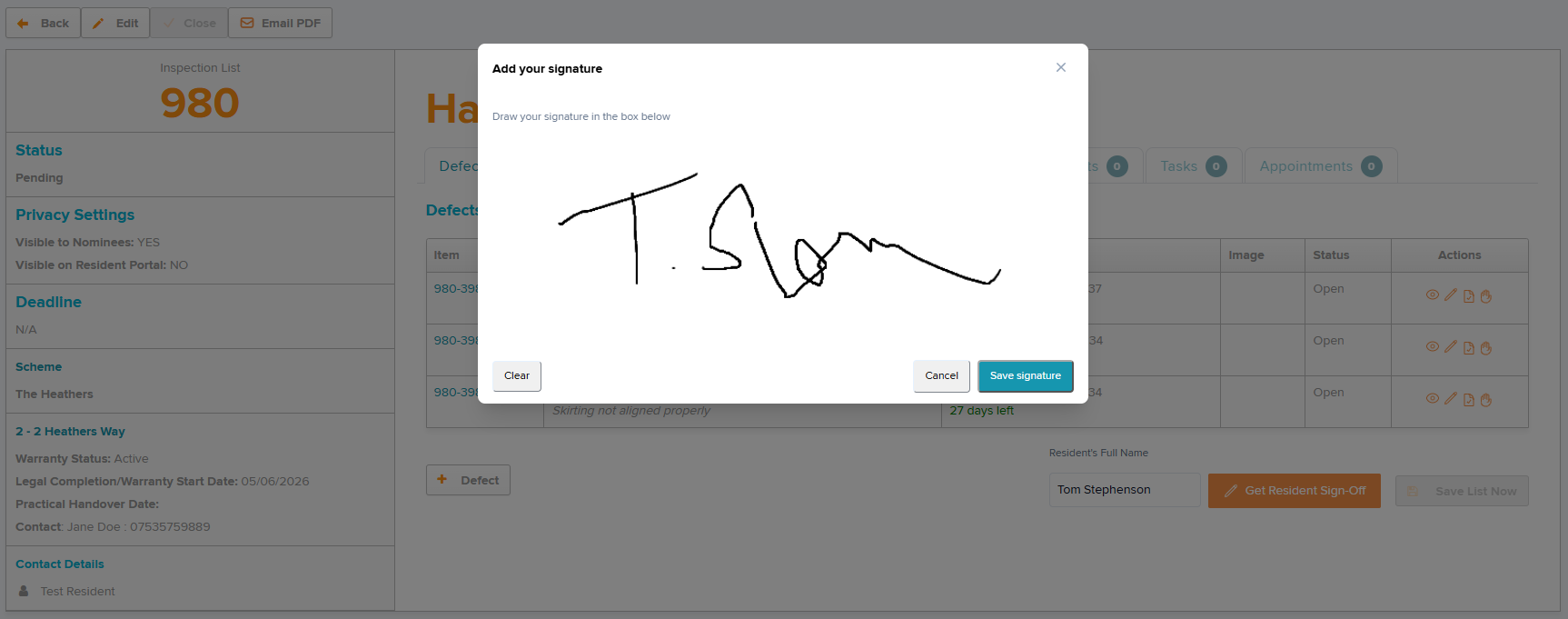
Step 4: If required, you can clear the signature & re-add if there has been a mistake. Once you're happy with the signature, click 'Save Signature'.
Step 5: Click 'Save List Now' to ensure the list is locked down & no more Defects can be added.
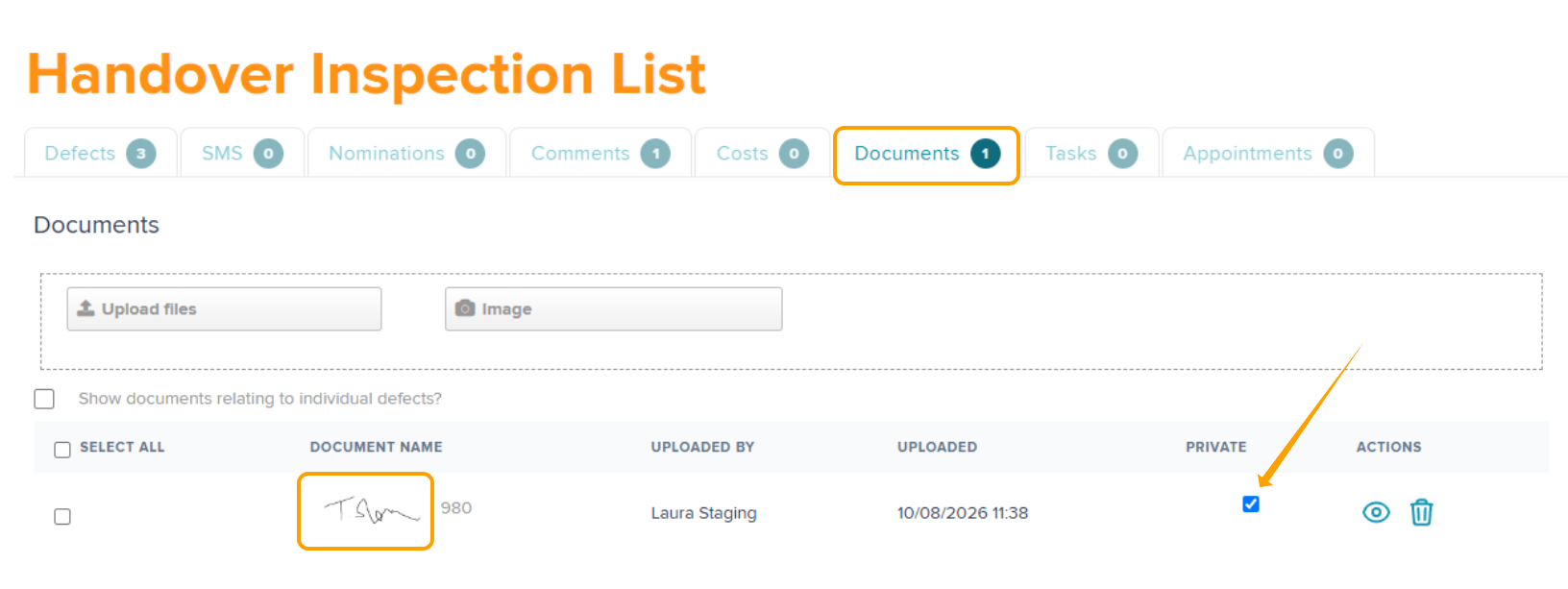
Once added, a copy of the signature will be stored in the 'Documents' section. The default setting will be unticked for 'Private' - meaning the signature will be visible to the Resident. If you don't want this to be visible to the Resident, you will need to tick the 'Private' box within 'Documents' as shown below.
Was this article helpful?
That’s Great!
Thank you for your feedback
Sorry! We couldn't be helpful
Thank you for your feedback
Feedback sent
We appreciate your effort and will try to fix the article